

7 Mac Video Editing Software Picks for Creator Workflows in 2026
The right mac video editing software depends on whether you need a full editing timeline or a faster way to turn long footage into vertical clips. For a polished Mac-native edit, look first at Final Cut Pro or DaVinci Resolve; for a familiar professional workflow, consider Adobe Premiere Pro. This comparison is for podcasters, streamers, YouTube creators, social teams, and organizations handling sensitive footage. It covers six Mac editing options, plus ClipForge as a clearly separate Windows-only tool for local AI clipping, not as Mac software.
The list has two categories because they solve different jobs. Mac editors give you hands-on control over a timeline, sound, color, and finishing. ClipForge’s category is local AI clip repurposing: it analyzes longer footage, finds candidate moments, and prepares short vertical videos on a Windows desktop. To compare them fairly, the criteria are: fit for the intended job, control over the final edit, implementation burden, pricing model, and important limitations. Pricing and product features can change; check each linked official page before you commit.
1. Final Cut Pro
Best for a Mac-centered editing pipeline
Final Cut Pro is a strong candidate when the work is primarily editing and finishing on a Mac: an interview episode, a YouTube video, or a carefully shaped set of social cutdowns. Its magnetic timeline and Apple ecosystem make it worth considering if you want a dedicated editor rather than a lightweight clip maker. Apple’s Final Cut Pro product page describes its editing and media capabilities; the exact feature set and current purchase terms should be checked there before buying.
For a podcast team, a practical workflow is to cut the full episode first, then make intentional short edits from the strongest sections. This favors a human editor who wants control over pacing and transitions. It is not the same as automatically scanning a full recording and ranking moments for you, so estimate the labor for selecting and exporting clips rather than assuming the NLE will do that editorial work.
Trade-offs and setup
- Best for: Mac users who want a dedicated editor and hands-on control over long-form and short-form timelines.
- Does not suit: Teams that need a Windows app, automatic highlight discovery, or a quick browser-based handoff.
- Standout: A focused editing environment for people who want to shape the story themselves.
Implementation burden: plan for a learning period, organized media, and manual review of each vertical crop and caption. Commercial model: Apple lists current purchase details on its product page; verify the terms for your region and account. Final Cut Pro is a poor fit if your bottleneck is finding moments in many hours of footage, rather than editing the moments you already selected.
2. Adobe Premiere Pro
Best for teams already using Adobe tools
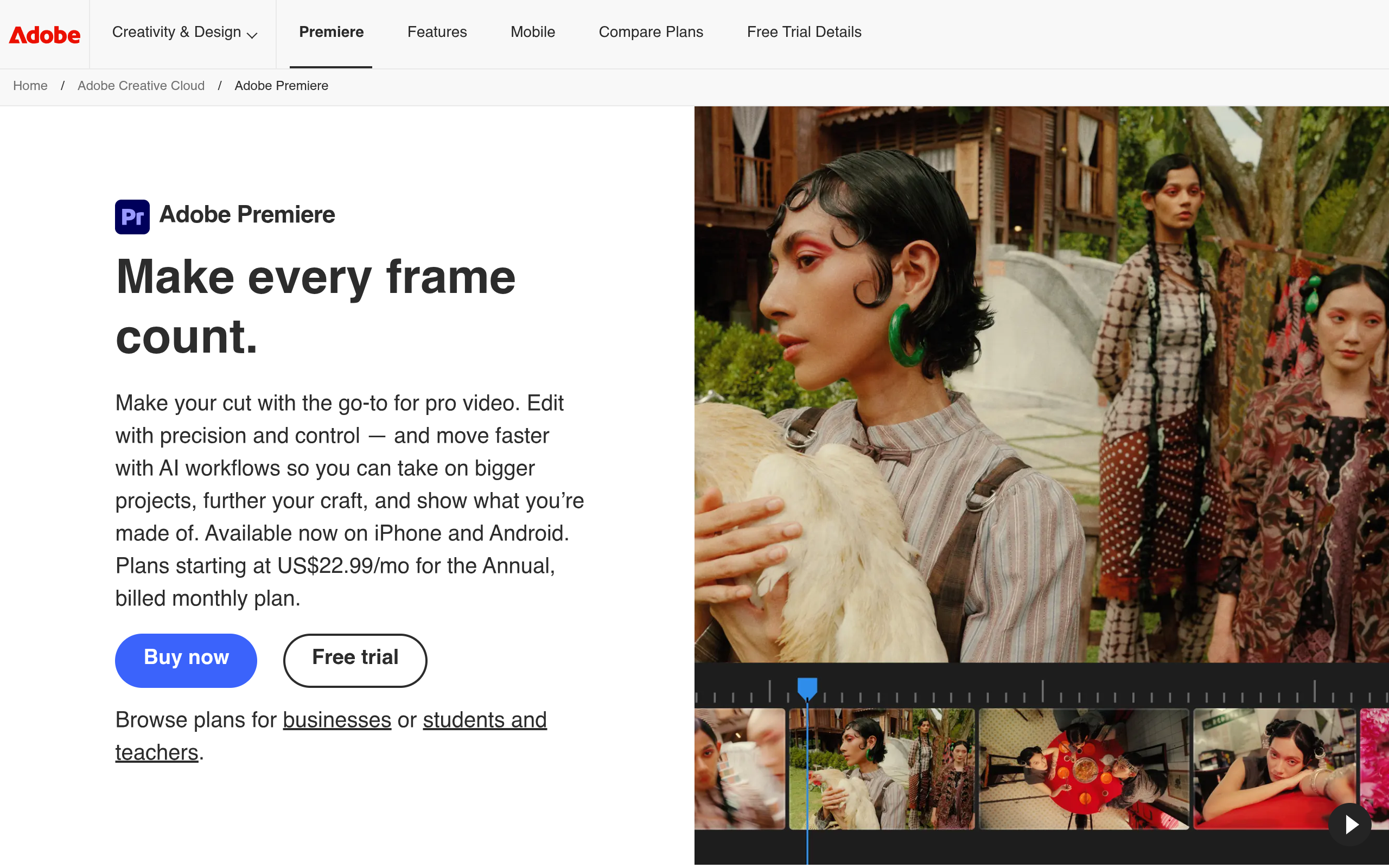
Premiere Pro makes sense when editors need a flexible desktop timeline and the organization already uses Adobe applications or has established Premiere project handoffs. It can serve a range of projects, from a YouTube episode to social versions, but it remains an editor: someone still needs to make editorial choices, review the result, and manage the project. Adobe’s Auto Reframe documentation explains its reframing workflow, useful when adapting a chosen edit to a different aspect ratio.
That reframing step can reduce repetitive work, but it is not a substitute for checking where a speaker, product, or on-screen graphic lands in every shot. A creator making clips from a two-hour stream should budget time to identify candidate moments and then inspect each crop. Auto Reframe addresses framing; it does not establish that a moment is compelling or self-contained.
Trade-offs and setup
- Best for: Editors who value a full-featured timeline and already work within Adobe project workflows.
- Does not suit: Occasional editors seeking the simplest learning curve or teams that require a perpetual, one-time purchase.
- Standout: A documented reframing workflow for adapting edits to other aspect ratios.
Implementation burden: moderate to high if the team is new to professional editing; establish project naming, media storage, and review conventions before scaling. Commercial model: Premiere Pro is offered through Adobe plans, so check the official product page for current plans and terms. It does not suit teams that want an automated clip-selection workflow with minimal timeline work.
3. DaVinci Resolve
Best for editing with detailed finishing control
DaVinci Resolve is a capable option for creators who want editing alongside detailed color and audio finishing in one desktop application. It can be a good fit when a YouTube production needs more than a quick assembly, for example, a carefully graded interview or a polished stream highlight. Blackmagic Design’s official DaVinci Resolve page describes the product and its editions; check the current comparison there rather than assuming every feature is in every edition.
For a social manager producing recurring batches, its depth is both an advantage and a cost. A reusable project template can help standardize titles and visual treatment, but someone must build and maintain it. If the actual job is selecting moments from a backlog of recordings, deep finishing controls do not remove that upstream editorial task.
Trade-offs and setup
- Best for: Creators who need a full editing and finishing environment and are willing to learn a deeper tool.
- Does not suit: Teams that prioritize the fastest possible onboarding or automated highlight discovery over timeline control.
- Standout: A broad post-production toolset with editions described by the developer.
Implementation burden: allow time to learn its interface and decide which edition supports your workflow. Commercial model: Blackmagic Design lists a free version and a paid Studio edition on its product page; verify current feature differences and purchase terms. Resolve is not the simplest pick for a volunteer podcast team that only needs basic trims and captions.
4. iMovie
Best for straightforward edits and first projects
iMovie is a sensible starting point for Mac users who need to assemble a basic video without adopting a professional editing workflow. It may be enough for a simple talking-head upload, a short recap, or a first pass at a social edit. Apple’s iMovie page outlines its editing features and availability; check the current requirements for the Mac you plan to use.
The main decision is whether its simplicity matches the delivery requirements. If a social team needs repeatable caption styling, precise control of many crops, or a large batch of clips, first confirm that the tool handles those details in the way your process requires. A straightforward editor is valuable when it removes unnecessary complexity, but a workflow can outgrow it once several people need consistent outputs.
Trade-offs and setup
- Best for: Newer editors and small projects where basic assembly matters more than advanced controls.
- Does not suit: High-volume clip operations, complex finishing, or teams with demanding project handoffs.
- Standout: A simple entry point for Mac video editing.
Implementation burden: low compared with a full professional editor, though you still need to review cuts, audio, and any vertical framing. Commercial model: Apple provides current availability information on the official page; confirm eligibility and terms for your device. iMovie is a poor fit if your team’s main cost is manually reviewing hours of footage to find moments.
5. CapCut
Best for social-first editing
CapCut is worth considering when the deliverable is a social video and a creator wants an approachable editing workflow rather than a traditional post-production setup. Before standardizing on it, check the official CapCut site for current desktop availability, features, and terms in your region. Product capabilities and account requirements can vary over time, so test the exact export and caption workflow your team plans to use.
For a social manager, the key question is not simply whether a tool can produce a vertical video. Check whether the team can maintain caption accuracy, safe margins, and a consistent visual identity across multiple editors. Use a short sample project with a speaker, a screen share, and a quick camera move; these reveal crop and subtitle issues that a static talking-head example may hide.
Trade-offs and setup
- Best for: Social-first creators who want to assemble and style short videos in a dedicated editing app.
- Does not suit: Organizations that have not cleared its current account, storage, and data-handling terms for their footage.
- Standout: A workflow oriented toward short-form creation; verify particular features on the official site.
Implementation burden: low to moderate for a solo creator, but a team should document templates, exports, and review steps. Commercial model: confirm current free and paid offerings on the official site rather than relying on an old price or feature list. CapCut is not a substitute for a carefully governed local-processing workflow when the footage is sensitive.
6. ScreenFlow
Best for screen recordings and tutorial-style videos
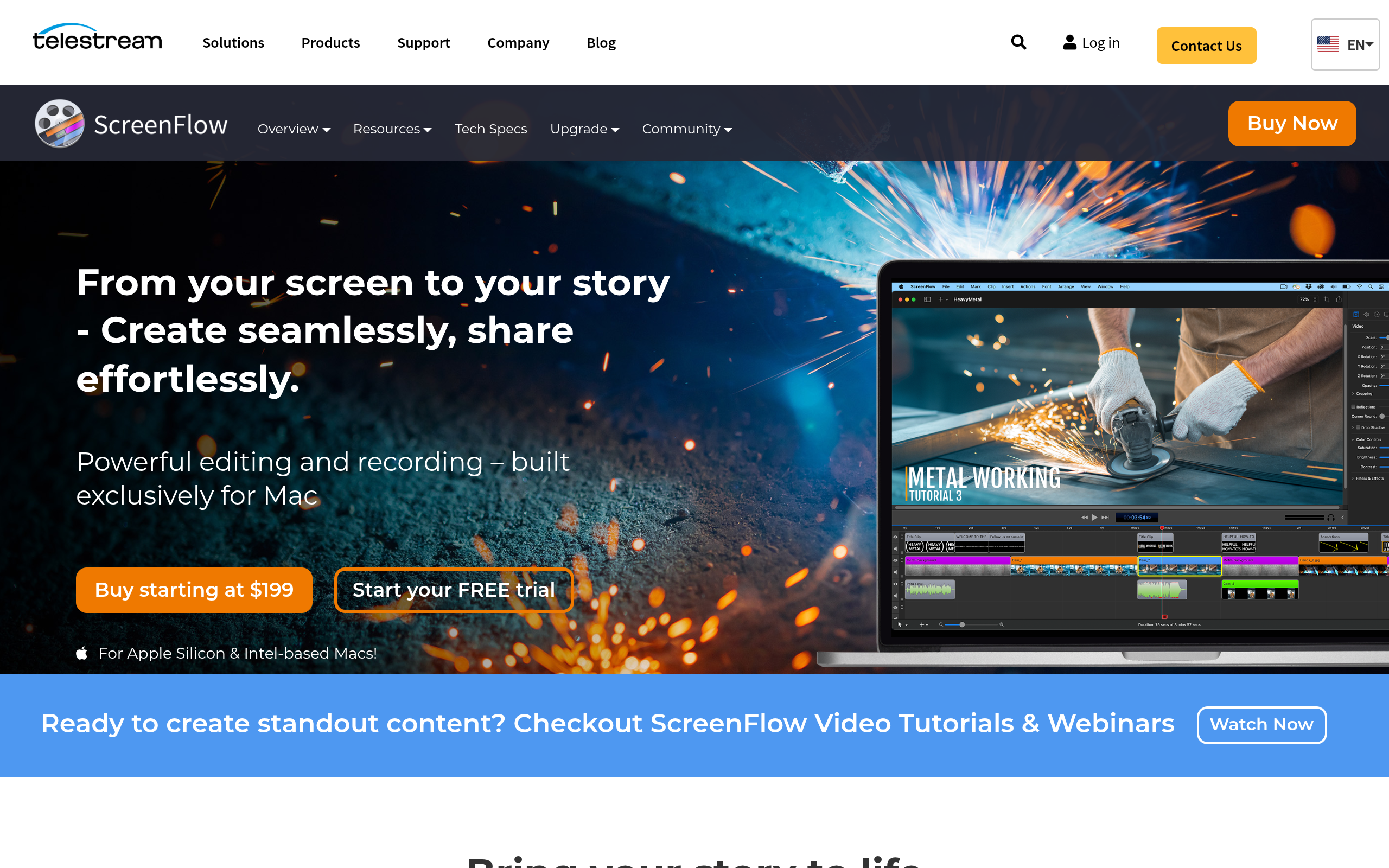
ScreenFlow is a Mac option to consider when the source material is a screen recording, product walkthrough, or training video. That use case differs from cutting a multi-camera podcast or grading a cinematic short. Telestream’s ScreenFlow overview is the place to check its current capabilities and requirements before deciding whether it fits your capture-and-edit process.
A useful test is to edit one real tutorial from start to finish: remove pauses, zoom or emphasize important interface details where appropriate, and check the exported file on a phone. If your production also depends on discovering highlights in long interviews, ScreenFlow’s screen-recording focus may leave that separate editorial bottleneck untouched. Avoid choosing a tool only because it can edit video; match it to the footage you actually produce.
Trade-offs and setup
- Best for: Mac creators whose recurring work centers on tutorials, demos, and screen-based instruction.
- Does not suit: Teams mainly editing camera-led entertainment or processing large volumes of long recordings into clips.
- Standout: A focused choice to evaluate for screen-recording-led projects.
Implementation burden: moderate if you need to define recording, editing, and export standards for a team. Commercial model: consult Telestream’s official page for current licensing and any available options. ScreenFlow is a poor fit if your core requirement is a general-purpose Mac editor with a particular finishing workflow; compare the feature details before adopting it.
7. ClipForge

Best for local AI clipping on a Windows desktop
ClipForge belongs in this comparison only as a distinct workflow category, not as Mac video editing software. It is a Windows desktop AI clipper that analyzes long-form footage locally, identifies potential strong moments, and turns them into short vertical videos with automatic captions, reframing, and batch processing. See the product’s information on ClipForge and its overview of local AI video editing. It can also optionally publish to YouTube.
That makes it relevant when the difficult part is repurposing a backlog: a podcaster has full episodes but little time to review them; a streamer has VODs that need candidate clips; or a social team needs to prepare multiple vertical drafts. It is not a Mac app, and it is not a replacement for a Mac editor when the job is detailed timeline work, extensive color finishing, or a Mac-only deployment. Treat its suggested moments as drafts that still need editorial review.
Trade-offs and setup
- Best for: Windows users who want local analysis and a batch-oriented route from long footage to short vertical drafts.
- Does not suit: Mac-only teams, editors who need a full traditional timeline, or anyone requiring cloud-based collaboration as the central workflow.
- Standout: Processing is designed to happen locally rather than uploading video files to the cloud.
Implementation burden: install on a compatible Windows desktop, test representative footage, and create a human review step for captions, crops, and context. Commercial model: check ClipForge’s current site for pricing and licensing; do not infer the terms from another editor. For Mac-first teams, a Mac editor remains the direct choice. For a Windows workstation handling confidential footage, ClipForge may be relevant when the goal is clipping rather than conventional editing.
Comparison
The table separates the Mac editing tools from the Windows clipping workflow so that a different job is not mistaken for a like-for-like alternative. “Best fit” describes the primary workflow, not a claim that one product is universally better. Confirm current features, operating-system requirements, and commercial terms on each official site before procurement.
| Product | Category and best fit | Platform fit | Implementation burden | Commercial model |
|---|---|---|---|---|
| Final Cut Pro | Mac editing and finishing | Mac | Learn the timeline; organize and review media | Check Apple’s current purchase terms |
| Adobe Premiere Pro | Professional timeline editing and reframing | Mac and other supported platforms; verify requirements | Moderate to high; manage projects and review crops | Adobe plans; check current terms |
| DaVinci Resolve | Editing and detailed finishing | Mac and other supported platforms; verify requirements | Moderate to high; learn the workflow and edition differences | Free and paid editions listed by Blackmagic Design; verify terms |
| iMovie | Basic Mac editing | Mac and other Apple devices; check requirements | Low for simple projects | Check Apple’s current availability and terms |
| CapCut | Social-first editing | Check current desktop availability and regional terms | Low to moderate; standardize team review | Check current offerings on CapCut’s site |
| ScreenFlow | Screen recordings and tutorials | Mac | Moderate; define capture and export standards | Check Telestream’s current licensing |
| ClipForge | Local AI clip repurposing | Windows desktop; not Mac software | Install, test footage, review generated drafts | Check ClipForge’s current site |
How to choose for your footage and team
Start with the bottleneck, not the feature list
Write down the step that consumes the most effort before comparing editors. If an editor already knows which moments to use and needs fine control, choose a Mac timeline tool. If a podcaster or streamer spends the day scanning long recordings for possible clips, a full editor may still be necessary for polish, but it will not solve moment discovery on its own. Separate finding a moment from finishing a video when you estimate the workflow.
- For a Mac-native YouTube edit: shortlist Final Cut Pro and DaVinci Resolve, then try the same representative project in each.
- For an Adobe-centered team: test Premiere Pro against existing project handoffs and the reframing review process.
- For basic edits: try iMovie before introducing a more complex tool, provided its output controls meet the brief.
- For screen-based training: evaluate ScreenFlow with a real tutorial rather than generic camera footage.
- For long-form clip discovery: consider a separate repurposing workflow, and verify that the operating system and data-handling approach are acceptable.
Run a representative workflow test
Do not choose from a feature checklist alone. Use one source file that resembles the hardest regular assignment: a two-person interview with occasional screen sharing, a fast-moving game stream, or a product demo with small interface text. Ask each shortlisted tool to produce one horizontal edit and one vertical version. Then compare the steps that tend to create rework:
- Caption correction: can an editor fix names, specialist terms, and punctuation without rebuilding the sequence?
- Framing review: do speakers and important on-screen details stay visible throughout motion?
- Handoff: can another editor reopen or review the project using your actual team setup?
- Privacy fit: are local processing, storage, and account requirements compatible with the footage and organizational policy?
- Repeatability: can the next batch use the same naming, visual treatment, and approval steps?
For sensitive legal, medical, or client footage, verify the actual processing path and applicable policies; “desktop app” alone does not establish that every operation is local or that a product meets a particular compliance requirement. A starting policy might be to test a short, non-sensitive sample first, document what leaves the machine, and obtain approval before processing restricted material. That is a planning suggestion, not a universal security standard.
Make the recommendation conditional
Choose Final Cut Pro or Premiere Pro when the priority is a hands-on Mac editing timeline; choose DaVinci Resolve when its editing and finishing depth matches the team’s skill and project; choose iMovie for simple jobs that do not need advanced controls. Consider CapCut for a social-first workflow only after checking current account and data terms, and ScreenFlow when screen recordings are the recurring source.
If you are specifically trying to eliminate the manual search through long recordings, keep the distinction clear: ClipForge is a Windows local-AI clipping tool, not a Mac editor. Explore this guide to choosing an OpusClip alternative if you are evaluating clip-repurposing workflows, and visit ClipForge to see what ClipForge offers for local, batch-oriented vertical clipping.
Authored with NotFair SEO