

Video Transcription for Turning Long Videos Into Short-Form Content
Video transcription is the process of converting spoken words in a video or audio recording into written text, usually with timecodes that connect each phrase to a moment in the source file. For a podcaster, streamer, YouTube creator, social media manager, agency, or regulated team, that transcript is more than a document: it can become a search layer, caption track, editing map, and source for selecting short-form clips.
The important distinction is between transcription as analysis and captions as a viewer-facing output. A transcript helps you find what was said. Captions display speech, sound cues, or both while someone watches. A useful workflow connects the two without assuming that an automatic transcript is publication-ready.
What Video Transcription actually produces
A basic transcription is a text representation of spoken audio. A production-ready transcription normally adds timing, speaker information, confidence signals, or formatting that makes the text useful for editing. The output may be a plain text file, a subtitle file, a caption layer inside an editor, or structured data used by an AI clipper.
Transcript, captions, and subtitles are different jobs
A transcript answers: “What was said, and where?” Captions answer: “What should appear on screen as the viewer watches?” Subtitles generally focus on dialogue translation or dialogue display, while captions can also communicate meaningful non-speech audio such as a door closing, applause, or music cues. The boundaries vary by platform and production team, so establish the intended output before choosing an export format.
Web Video Text Tracks, commonly known as WebVTT, is a standard format for timed text tracks. Its structure supports cues with start and end times, making it suitable for captions and other synchronized text; the W3C specification documents the format and its cue timing model at W3C’s WebVTT specification. That does not make every WebVTT file visually correct on every platform: styling, line length, positioning, and supported metadata can still vary.
For short-form editing, a useful transcript usually contains these elements:
- Time-aligned words or segments: enough timing detail to jump from a sentence to its exact location in the source.
- Speaker labels: especially useful when a podcast has a host and guest, or a stream includes several participants.
- Punctuation and paragraph breaks: readable text makes it easier to recognize a complete thought.
- Confidence or review indicators: a way to prioritize names, numbers, jargon, and unclear audio for checking.
- Searchable metadata: episode name, recording date, source filename, and any notes that help a team find the original.
Do not treat the transcript as a neutral record of meaning. Speech recognition hears sound patterns, not intent. It may produce a plausible but wrong sentence, merge two speakers, miss a quiet response, or turn a product name into a common word. That matters when the transcript is used to select a “strong moment”: an incorrect word can make a joke look flat, hide an objection, or suggest that a speaker made a claim they did not make.
Why timecodes matter more than a clean paragraph
A polished paragraph is convenient for reading but weak for editing if it cannot take you back to the source. Time alignment lets a clipper or editor locate the beginning and end of a thought, remove dead air, and test whether the selected moment works with its visual context.
Consider a 90-minute interview. A transcript that says a guest discussed “pricing objections” is useful for research. A transcript that marks the phrase from 00:42:18 to 00:43:07 is useful for production. A clip workflow can then inspect the surrounding seconds, preserve the question that creates context, and decide whether the answer should begin with a short setup rather than an abrupt claim.
Why transcription changes the clipping decision
Automatic clipping works best when it has both language signals and media signals. Words can reveal a complete argument, punchline, disagreement, or answer. Audio energy, pauses, laughter, scene changes, and faces provide additional evidence about whether that passage will hold attention as video.
Transcription is therefore not the same as “find the most exciting sentence.” It gives the system and the editor a map of the conversation. The final selection should still account for whether the viewer knows who is speaking, what question is being answered, and why the moment matters outside the original episode.
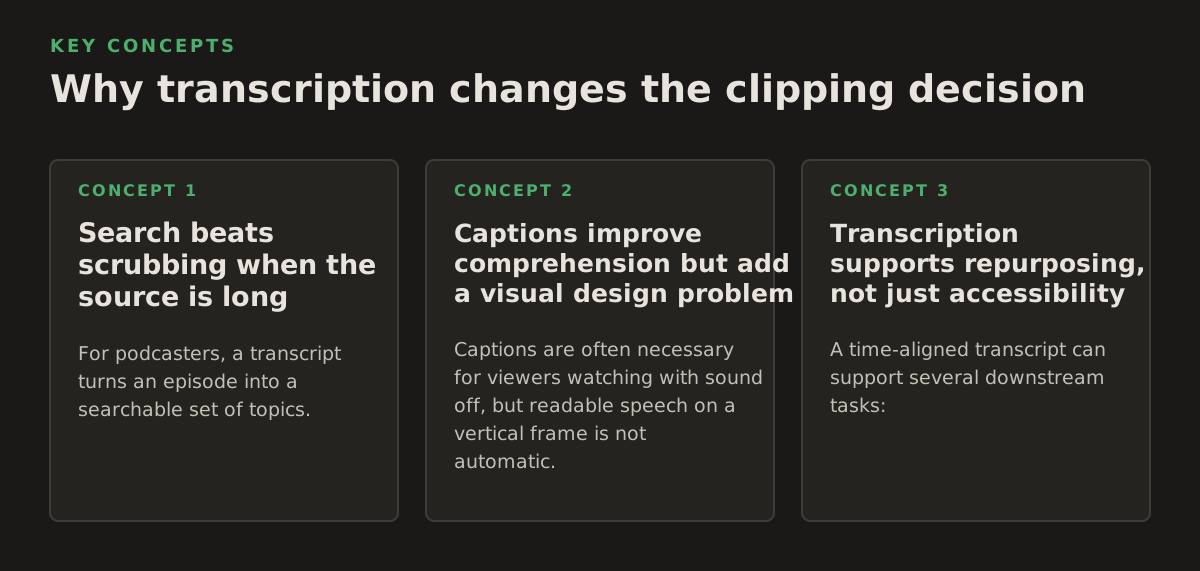
Search beats scrubbing when the source is long
For podcasters, a transcript turns an episode into a searchable set of topics. Instead of scrubbing through an hour-long timeline, an editor can search for “burnout,” “first customer,” “mistake,” or a guest’s name, then inspect nearby passages. For streamers, it can surface a reaction, explanation, or turning point buried inside a multi-hour VOD.
That search layer is particularly valuable when the same recording must produce many assets. A social media manager can create a review queue around product names, customer questions, or campaign terms. An agency can let a producer locate moments for several clients without repeatedly watching every source from the beginning.
Captions improve comprehension but add a visual design problem
Captions are often necessary for viewers watching with sound off, but readable speech on a vertical frame is not automatic. The editor must decide how many words appear at once, where lines break, whether emphasis is useful, and whether text overlaps a face, game HUD, lower-third, or platform interface.
Useful caption decisions include:
- Break by meaning: keep a phrase together rather than splitting a name, number, or condition across two screens.
- Preserve speaker rhythm: do not make every word appear as if it were delivered at the same pace.
- Protect the safe area: leave room for platform controls and avoid covering the main visual subject.
- Use emphasis selectively: highlighting every word creates noise; highlight a term only when it helps comprehension or pacing.
- Review proper nouns manually: names, brands, software commands, medical terms, and legal language are high-cost error zones.
YouTube’s official guidance explains that automatic captions are generated by speech recognition and may contain errors caused by accents, dialects, background noise, overlapping speakers, or poor audio quality. Its YouTube caption help documentation also describes reviewing and editing captions before or after publication. The practical lesson is simple: automation can create a first pass, but a human review remains part of the publishing workflow when accuracy matters.
Transcription supports repurposing, not just accessibility
A time-aligned transcript can support several downstream tasks:
- finding a short clip around a complete answer;
- writing a social post without replaying the entire source;
- checking whether a selected clip needs setup or context;
- creating chapters or internal search terms;
- building a review list for a client or legal team;
- identifying repeated questions across a library of recordings.
These benefits are strongest when the transcript remains connected to the original media. A standalone text file can tell you what was said, but it cannot tell you whether the speaker was on camera, whether a visual demonstration was happening, or whether another person’s reaction completed the moment.
How an automated transcription-to-clip workflow works
A reliable workflow is a chain of decisions rather than one button. The system first extracts or reads the audio, converts speech into text, aligns text to time, detects useful boundaries, generates candidate moments, and renders outputs. Each stage can introduce errors that affect the next stage.
1. Ingest and inspect the source
Start with the actual recording rather than an already compressed social export when possible. Check whether the file has multiple audio tracks, separate microphones, screen audio, music, or long stretches of silence. A transcript made from the wrong track may be clean but incomplete.
For a two-person podcast, separate microphones can make speaker identification easier. For a stream, game audio may compete with speech. For a medical or legal recording, multiple speakers may need explicit labeling even when the words are technically understandable.
2. Run speech recognition and time alignment
Speech recognition converts audio into probable words. Alignment assigns those words or groups of words to time ranges. Some systems process complete segments; others expose word-level timing. Segment-level timing is usually sufficient for rough clip discovery, while word-level timing helps create animated captions and precise cuts.
Google’s official Speech-to-Text documentation describes speech recognition as converting audio into text and provides guidance on recognition models, audio configuration, and supported features at Google Cloud’s Speech-to-Text basics documentation. The implementation details vary by tool, but the production concern is consistent: audio configuration and recording conditions affect the transcript you receive.
3. Normalize the text without destroying the original
Normalization can repair obvious punctuation, standardize repeated filler words, and make search easier. It should not silently replace the raw recognition output. Keep an original transcript for auditability and a working transcript for editing or search.
Be conservative with automatic corrections. “HIPAA,” a product code, a medication name, or a customer’s surname may look like an error to a general language model. A correction that improves readability can still create a factual or reputational problem if it changes the speaker’s words.
4. Score candidate moments
A clipping system can use multiple signals to rank candidate passages:
- Semantic completeness: does the passage make sense without ten minutes of prior context?
- Information density: does it contain a useful explanation, surprising detail, story beat, or actionable answer?
- Emotional movement: is there tension, humor, recognition, disagreement, or a clear reaction?
- Audio and visual quality: are voices intelligible and important faces or screen actions visible?
- Opening strength: does the first sentence create a reason to continue watching?
- Ending strength: does the clip land on an answer, reveal, punchline, or useful next step?
These signals should produce candidates, not pretend to determine taste. A calm explanation may be valuable to a professional audience even if it has little emotional energy. A loud reaction may be entertaining but unusable if the surrounding context is missing or the screen contains confidential information.
5. Reframe and caption for the destination
Once a candidate is chosen, the video can be reframed for a vertical layout. A talking-head clip may need face tracking or a deliberate crop. A screen recording may need a different composition, zoom, or a picture-in-picture treatment. Captions should be rendered after the crop is known so their placement can be reviewed against the final frame.
For each clip, retain a link to the source time range and the transcript segment used to create it. This makes revisions faster: if a client questions a phrase, the producer can open the original context instead of reconstructing the edit from memory.
6. Review and publish
Review is not only proofreading. Watch the rendered clip with sound and without sound, because a caption can look correct while the audio reveals a missing word or speaker overlap. Then review the first and last seconds, where abrupt cuts are most noticeable.
If a workflow publishes to YouTube, use the platform’s official upload and video resource documentation as the source of truth for the current publishing process rather than relying on an old automation tutorial. The YouTube Data API video insertion documentation describes the API method for uploading a video and setting associated metadata. API access, authentication, quotas, and account permissions remain separate operational concerns.
Where automated transcription breaks down
The most expensive transcription errors are not always the obvious nonsense words. A visibly wrong word can be caught. A fluent but incorrect word in a legal statement, medical explanation, product name, or client testimonial can pass review unless someone checks it against the audio.
Audio conditions that reduce reliability
Expect more review when the recording includes:
- multiple people speaking at once;
- far-field microphones or strong room echo;
- music, gameplay, traffic, or audience noise;
- whispering, shouting, heavy accents, or rapid speech;
- specialized terms, names, acronyms, and code;
- frequent language switching;
- long pauses followed by clipped or overlapping dialogue.
Do not solve every problem by editing the transcript. If the audio is unintelligible, a polished sentence may be an invention. The correct action may be to cut the passage, replace it with a clearer answer, add a human-made correction, or return to the source recording for clarification.
Speaker diarization is useful but not infallible
Speaker diarization attempts to divide a recording into speaker turns. It can confuse people with similar voices, lose track after interruptions, or label a short response as part of the previous speaker’s turn. This matters for captions because assigning a statement to the wrong person changes its meaning even when every word is spelled correctly.
For a podcast, display names should be checked against the episode roster. For a panel, a producer may need to correct labels manually. For a stream with voice chat, anonymity and consent may also matter: a technically accurate label is not automatically an appropriate public identifier.
Short clips can remove necessary meaning
Transcription makes it easy to find an attractive sentence, but a sentence is not necessarily a defensible clip. Watch at least enough surrounding material to identify qualifications, irony, corrections, and references such as “that” or “they” that depend on earlier context.
For legal, medical, financial, and corporate content, create a context review rule. An illustrative starting policy might require the editor to review 30–60 seconds before and after a candidate, then have a subject-matter reviewer approve the final wording. That range is a workflow example, not a universal benchmark; the appropriate review window depends on risk and subject complexity.
Privacy is a workflow property
Uploading footage to a remote service can create questions about retention, access, contracts, client permissions, and where sensitive material is processed. The right answer depends on the service agreement and organizational policy, so do not infer privacy guarantees from a marketing label alone.
For agencies, legal teams, medical teams, and businesses handling confidential footage, local processing reduces the number of systems receiving the source file. It does not eliminate every risk: a workstation can still be compromised, exports can still be mishandled, and transcripts can still contain sensitive information. Use access controls, encrypted storage where appropriate, secure backups, and a deletion policy that covers both media and generated text.
How practitioners apply transcription by role
The same transcript serves different jobs depending on who owns the content pipeline. The useful question is not “Can this tool transcribe?” but “Which production decision will the transcript make cheaper, faster, or safer?”
Podcasters: build a clip bank from ideas, not timestamps alone
After recording, search for complete answers, strong opinions, personal stories, and moments where the guest changes their mind. Create several candidate ranges around each topic, then select clips that can stand alone. A compelling answer may need the host’s question, while a surprising statement may work better if the clip opens on the guest’s first clear claim.
A practical episode workflow is:
- Transcribe the full episode and retain speaker labels.
- Mark recurring topics and unusually specific stories.
- Generate candidates with enough setup to identify the subject.
- Review the audio, face framing, and any claims that need verification.
- Produce several vertical versions with different openings rather than changing only the caption color.
Do not force every clip to use the same duration. One answer may need a concise explanation; another may work because the pause and reaction are part of the story. The transcript helps locate the material, but pacing comes from the edit.
Streamers: separate searchable moments from watchable moments
VODs contain long stretches that are valuable to the original audience but poor short-form candidates: queue time, setup, repetitive gameplay, or private conversation. Search can identify reactions, explanations, clutch plays, mistakes, and viewer questions. Then inspect the video to confirm that the visual event is visible and understandable in a vertical crop.
For game content, captions should not cover the key interface. If the moment depends on a small map, inventory panel, or chat message, a face-centered crop may destroy the evidence. In that case, consider a layout that gives the gameplay more space and uses the transcript as supporting context rather than the main visual layer.
YouTube creators: use transcription to turn one recording into a planned series
A creator can tag transcript sections by audience question, objection, tutorial step, or result. This produces a content map before editing begins. It also exposes repetition: if the same explanation appears three times in a video, only one version may deserve a short clip.
Vertical video should not be treated as a simple center crop of horizontal footage. Check whether the subject, screen, product, or demonstration survives the new composition. If it does not, the right answer may be a redesigned excerpt, a voiceover supported by b-roll, or no short from that section.
Social media managers and agencies: create a reviewable handoff
High-volume teams need consistency more than novelty. Give each candidate a transcript excerpt, source timecode, proposed hook, target channel, caption status, and reviewer. That makes approval concrete and prevents a client from reviewing a rendered file without knowing where the words came from.
An illustrative handoff table might look like this:
| Field | Purpose | Owner |
|---|---|---|
| Source range | Returns reviewers to the original context | Editor |
| Transcript excerpt | Shows the words selected for captions and copy | Editor |
| Risk flag | Marks names, numbers, claims, or sensitive details | Producer |
| Visual check | Confirms the crop preserves the important action | Editor |
| Approval status | Prevents unapproved versions from being published | Client or channel owner |
When a team processes client footage, keep source files and transcripts separated by client and project. A transcript can expose private information even when the original video is stored securely, so treat exported text, caption files, review links, and social copy as part of the same content-security boundary.
Businesses and regulated teams: optimize for traceability
For internal training, support, legal review, or medical education, the winning feature may not be a flashy caption animation. It may be the ability to show how a published excerpt maps back to the original recording and who approved the wording.
Use a controlled vocabulary for names and terms, require human review for high-risk passages, and preserve the original transcript alongside corrected captions. If a correction is made, document whether it fixes recognition, removes a verbal filler, or changes wording for clarity. Those are different editorial actions and should not be confused.
A practical operating policy for 2026
Choose the processing model according to the material, the review burden, and the output volume. Local AI video editing is particularly relevant when footage should remain on a Windows workstation during analysis and clipping. ClipForge is designed to analyze long-form footage locally, identify strong moments, generate captions, reframe clips, batch process outputs, and optionally publish to YouTube without uploading video files to the cloud. You can read more about local AI video editing before deciding how it fits your environment.
That approach is not automatically the best choice for every team. A distributed agency may value centralized collaboration. A regulated organization may require local processing but still need a separate approved system for publishing. A creator with clean audio may prioritize speed, while a legal team may prioritize review records over automatic selection.
Use this decision sequence:
- Classify the footage: public, internal, client-confidential, regulated, or personally sensitive.
- Define the output: searchable transcript, edited captions, vertical clips, subtitle file, or all of these.
- Set the review level: light review for low-risk content; line-by-line review for names, claims, and regulated subjects.
- Choose the crop strategy: face tracking, speaker switching, gameplay-first, screen-first, or a custom layout.
- Preserve traceability: retain source ranges, transcript versions, approvals, and final exports.
- Measure the real bottleneck: discovery time, caption correction, reframing, approvals, rendering, or publishing.
If you are evaluating alternatives for a Windows-based workflow, compare them by where the source files go, how much correction is required, whether timecodes remain attached to the transcript, and how easily a reviewer can move from a candidate clip back to the original. A feature checklist is less useful than a risk-and-review checklist; the latter reflects the actual cost of publishing an incorrect or contextless clip. For that evaluation, see this OpusClip alternative.
As an illustrative starting policy, a small content team might require transcript review for every proper noun and number, a visual check for every vertical crop, and explicit approval for any clip involving a customer, medical topic, legal statement, or performance claim. Those are sensible controls to adapt, not universal rules.
Use ClipForge when the job is to turn long recordings into a batch of captioned, reframed vertical candidates while keeping video analysis on a Windows desktop. Its local workflow is a practical fit for teams that need clip discovery and repurposing without making cloud upload the default; learn more at ClipForge.
Authored with NotFair SEO